
Capturing screenshots and GIFs quickly matters for teams that depend on visual communication to explain ideas or share feedback fast. Gyazo handles this with instant cloud-based sharing and collaboration, turning a screen capture into a shareable link right away.
This blog covers Gyazo’s top features, pricing, benefits, drawbacks, and alternatives, so developers, designers, and remote workers can decide if it’s the right screenshot tool for their team in 2026.
By the end, you’ll know how Gyazo’s free, Pro, and Team plans differ, where its editing tools fall short compared to options like Snagit or Loom, and whether its organized capture history and cross-platform support fit your workflow.
Key Takeaways
- Gyazo makes capturing screenshots and sharing them instantly through the cloud simple for teams.
- Well suited to developers, designers, educators, and remote teams that need quick visual communication.
- The free version works for casual use, while Pro and Team plans add advanced features and longer recording limits.
- Editing options are limited, so teams needing more detailed editing may want to look at alternatives like Snagit or Loom.
- Gyazo supports team productivity with its ease of use, organized capture history, and cross-platform availability.
What is Gyazo?
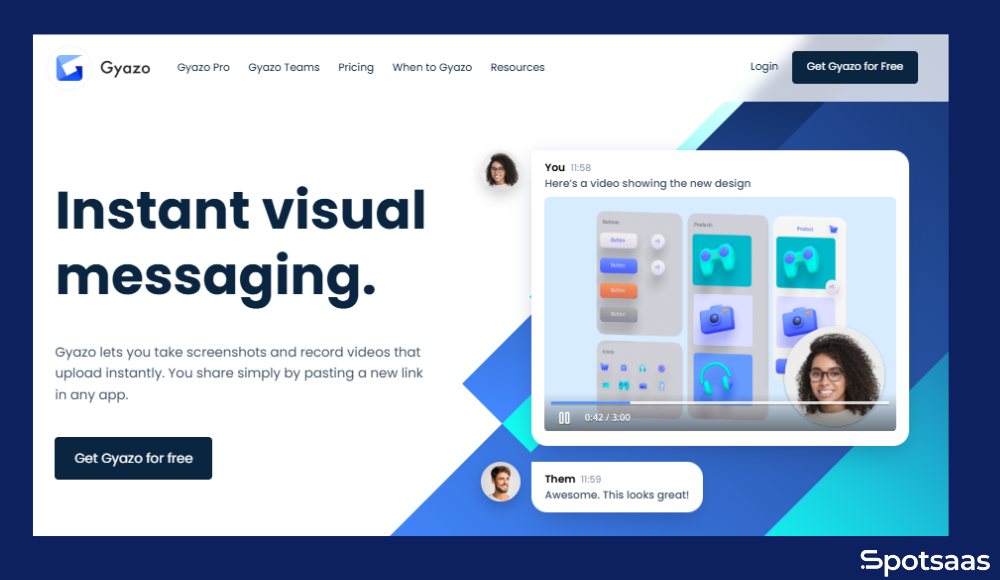
Gyazo is a easy-to-use software tool designed to quickly capture screenshots, create GIFs, and record short videos. It simplifies visual communication by instantly uploading captures to the cloud and generating shareable links. This makes collaboration easier than ever.
Many designers, software developers, social media managers, and remote-working professionals rely on Gyazo daily to simplify tasks like visual feedback, bug reporting, and team communication. If you’re looking for an simple way to capture and share visuals, Gyazo may be exactly what your team needs.
Who Should Use Gyazo? (Ideal Users)
Understanding whether Gyazo matches your professional needs is essential before making a decision.
The software is designed for individuals and teams that frequently rely on visual content to communicate effectively, solve problems quickly, and boost overall productivity.
- Remote Teams: Fast sharing of visuals enhances collaboration. Teams can clearly communicate ideas, tasks, and feedback without lengthy emails or meetings.
- Developers & QA Testers: Quick bug documentation and sharing visuals in real-time. Developers can instantly highlight issues. This simplifies debugging and resolution processes.
- Graphic Designers: Instant sharing of visual concepts or revisions. Designers can easily collaborate with clients and colleagues, receiving quick approvals and feedback.
- Educators: Simplified visual demonstrations for students. Teachers and instructors can efficiently explain complex concepts through visuals, GIFs, or short videos.
- Social Media Marketers: Rapid creation of engaging visual content. Marketers can quickly produce and share visually appealing material, increasing audience engagement and interaction.
This especially useful for professionals whose workflow depends heavily on clear, visual communication. Its quick capture-and-share functionality helps these users save significant time and improves overall productivity and collaboration.
Key Features of Gyazo
Gyazo offers several essential features tailored to simplify visual communication and collaboration. These features enhance productivity, save valuable time, and simplify the process of capturing, sharing, and organizing visual content.
Instant Screenshot & Sharing
Makes screenshot capturing simple. With just one click, your screen captures instantly upload to Gyazo’s secure cloud servers, providing you with a direct, shareable link.
This significantly reduces the back-and-forth typically associated with sending visual content via email or messaging platforms. This ensures that your team can focus on tasks rather than file attachments.
It also enables quick feedback loops, essential for fast-paced teams. Whether sharing with colleagues or external clients, the instant accessibility speeds up your entire communication process.
GIF & Video Recording
In addition to static screenshots, enables you to quickly create short animated GIFs or video clips directly from your screen. This feature is highly useful for visually illustrating software demos, troubleshooting guides, brief tutorials, or showcasing processes to team members.
By offering these visual explanations, your communication becomes clearer and misunderstandings decrease. The intuitive recording interface ensures users of all technical levels can easily create visuals. Sharing short clips makes complex explanations easy and instantly digestible.
Editing & Annotation Tools
To further enhance clarity, includes built-in basic editing and annotation features. You can easily add text annotations, directional arrows, highlights, and other simple edits directly within itself.
This eliminates the necessity of external editing software and helps clarify visuals immediately. This enables faster feedback and smoother collaboration. Even users without graphic design skills can produce clear, professional-looking visuals. This straightforward functionality reduces reliance on other tools. This simplifies your workflow.
Organization & Search
Automatically stores all your captured visuals online. This provides convenient access whenever needed. With intuitive tagging capabilities, you can quickly label and categorize screenshots, GIFs, or videos. This makes them easily searchable within organized history.
This allows you to retrieve past visuals instantly, ensuring nothing gets lost or misplaced, and improving overall workflow efficiency. Effective organization reduces wasted time searching through files and folders.
Online storage ensures team-wide visibility and access. This supports smooth collaboration across different projects.
Pricing and Plans
Choosing the right plan depends primarily on your usage needs, whether personal or team-based. Gyazo offers flexible pricing options to suit various requirements, ranging from casual to professional team usage.
| Plan Type | Pricing | Best For | Key Features |
|---|---|---|---|
| Free Version | Free | Casual or individual users | Basic screenshots/GIFs, limited cloud storage, short video duration |
| Gyazo Pro | $4.99/month or $47.88/year | Individuals, frequent users | Unlimited captures, advanced editing, increased storage, ad-free experience |
| Gyazo Teams/Enterprise | Custom Pricing | Professional teams, businesses | Shared workspace, advanced security, administrative controls, priority support |
My Recommendation
- Individuals: The Free or Pro plans typically meet most personal needs effectively.
- Professional Teams and Businesses: Opt for Gyazo Teams or Enterprise for complete collaboration and advanced productivity features.
Benefits of Using Gyazo
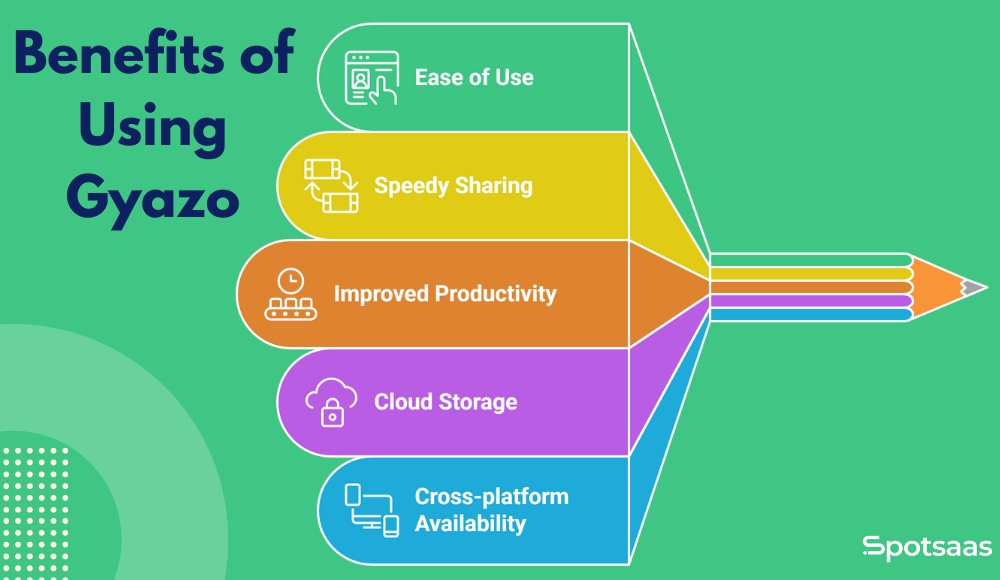
Gyazo provides several meaningful benefits, especially for users who regularly rely on visuals for collaboration and communication. Its design focuses on simplicity, speed, and convenience. This enables users to save valuable time and resources.
Ease of Use
Gyazo is known for its intuitive and easy-to-use interface. This allows anyone, even non-technical users, to quickly master the software within minutes.
With minimal setup and straightforward features, teams can instantly integrate into their daily workflow. This reduces learning curves and training needs. Its simplicity gives all team members to actively engage in visual communication without hurdles.
Speedy Sharing
One of Gyazo’s standout advantages is the ability to instantly generate shareable links as soon as visuals are captured. This eliminates the delays typically involved in uploading or emailing visual files, speeding up interactions between colleagues and clients significantly.
Quick sharing enables immediate feedback and enhances team responsiveness, essential in fast-paced environments.
Improved Productivity
By simplifying visual explanations, Gyazo greatly reduces the time and effort usually spent writing detailed emails or messages.
Team members can use clear visuals instead of lengthy text-based explanations. This reduces misunderstandings and accelerating decision-making processes. This leads to increased productivity, better workflow efficiency, and smoother communication.
Cloud Storage
Securely stores all captured screenshots, GIFs, and short videos on cloud servers. This means users can conveniently access their visual content anytime and from any device.
Having a central, easily searchable repository of visuals significantly enhances productivity, prevents file loss, and ensures all team members can consistently access essential information whenever needed.
Cross-platform Availability
Supports many operating systems, including Windows, macOS, and popular mobile platforms. This ensures users enjoy a smooth, consistent experience across multiple devices. This enables smooth collaboration within diverse teams.
Cross-platform availability makes Gyazo particularly valuable for remote or hybrid work environments, ensuring everyone stays connected through visual communication, regardless of the device they use.
How to Use Gyazo for Sharing Screenshots Instantly
Instantly capturing and sharing screenshots with Gyazo is quick and simple. This helps teams communicate visually without delays.
Follow these straightforward steps to easily take screenshots, automatically upload them to the cloud, and share via unique links.
| Step | Action | Explanation |
|---|---|---|
| 1 | Install Gyazo App | Download and install Gyazo from the official website. |
| 2 | Capture Screenshot | Press Gyazo’s shortcut (Ctrl+Shift+C) to capture your screen instantly. |
| 3 | Automatic Cloud Upload | Your screenshot automatically uploads to Gyazo’s cloud storage. |
| 4 | Instant Link Generation | Gyazo immediately provides a unique, shareable link. |
| 5 | Share the Screenshot | Paste the link into emails, messages, or collaboration tools to share instantly. |
Alternatives to Gyazo
While Gyazo excels at providing simple and instant screenshot capturing and sharing, exploring alternatives may help you find software better tailored to your specific needs.
Whether you require advanced editing tools, longer screen recordings, or more complete team collaboration features, considering these alternative tools will ensure you choose the best screenshot and recording software for your workflow.
1. Lightshot
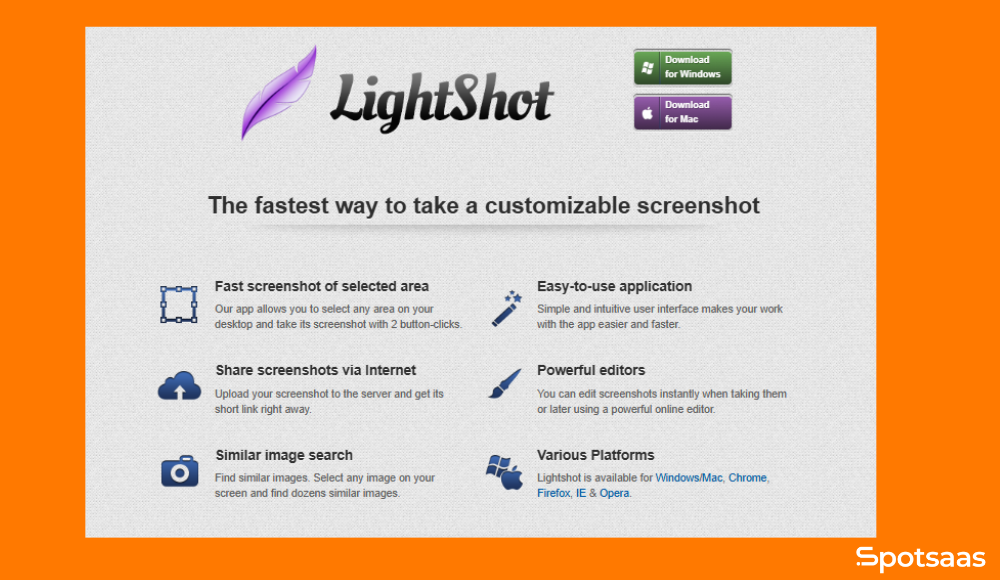
Lightshot is an intuitive screenshot tool known for quick capturing, easy editing, and instant sharing capabilities. Its lightweight and easy-to-use nature makes it particularly effective for simple, everyday tasks without complexity.
It integrates directly with popular browsers and operating systems. This offers users a smooth experience. Additionally, its built-in search function allows users to find similar images online quickly.
Best For
Individuals and small teams needing fast, straightforward screenshot capturing and basic editing functionalities.
Key Features
- Instant capturing with customizable shortcuts
- Simple annotation tools (arrows, text, shapes)
- Instant sharing via direct cloud-upload links
- Easy integration with various platforms
Why Choose Lightshot
Lightshot’s simplified approach allows users to capture, edit, and share images easily. This makes it perfect for quick visual communication without advanced editing requirements.
2. Snagit
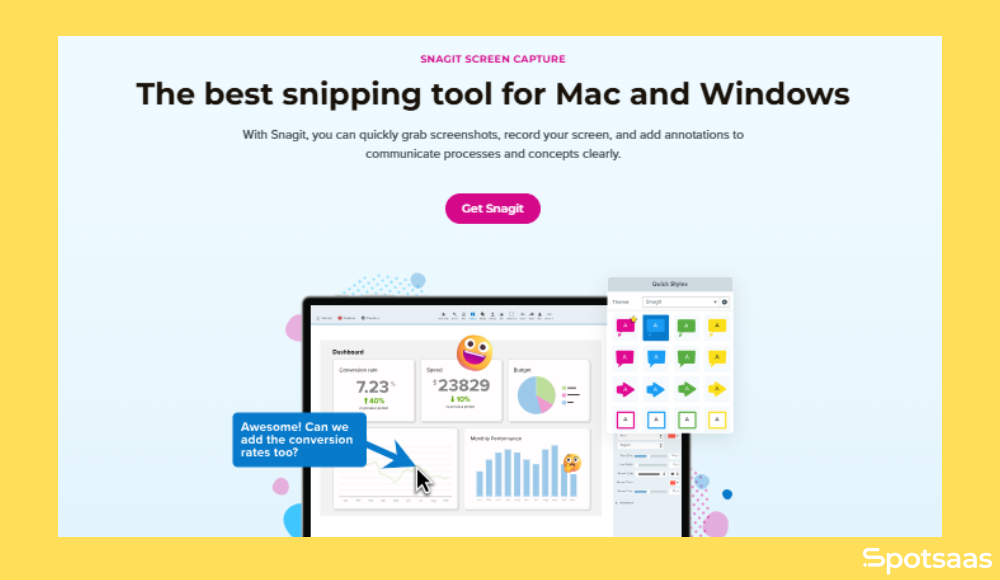
Snagit is a complete screenshot and video capture tool featuring advanced editing and professional-grade documentation capabilities. It helps create detailed, informative visuals, ideal for business and professional environments.
Snagit provides extensive customization options, enabling users to produce high-quality, polished visuals tailored to their specific requirements. Its strong organizational features simplify managing large volumes of captures.
Best For:
Businesses, professionals, and teams requiring detailed visual documentation, advanced editing tools, and powerful screen recording capabilities.
Key Features
- Powerful screenshot and video capturing
- Advanced annotation and editing tools (effects, callouts, stamps)
- Video trimming and editing functionality
- Centralized content library for easy organization
Why Choose Snagit
Snagit is ideal for users who need detailed visual content creation. Its strong editing and organizational features make it well-suited for creating professional training materials, detailed instructions, and complete visual documentation.
3. Loom
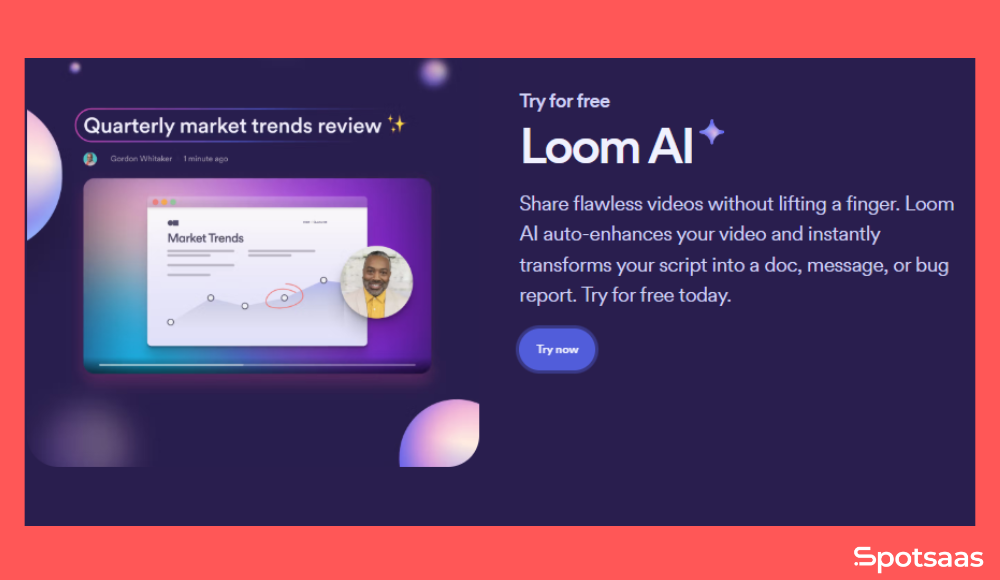
Loom is an easy-to-use screen recording tool designed for creating engaging and detailed video presentations or explanations. It excels in enhancing remote communication, collaboration, and education through visual video content.
Loom enables users to record directly from their browsers or desktop apps easily. Its integrated video-sharing platform simplifies collaboration by allowing viewers to comment or react directly to the videos.
Best For
Remote workers, educators, sales professionals, or content creators who frequently produce video-based explanations, tutorials, or presentations.
Key Features
- Quick, intuitive video recording of screens and webcams
- Easy video editing and trimming
- Collaborative tools, including video comments and reactions
- Unlimited video durations on premium accounts
Why Choose Loom
Choose Loom if your primary need involves creating engaging, shareable video content to facilitate clear communication, particularly in remote or hybrid working environments.
4. Greenshot
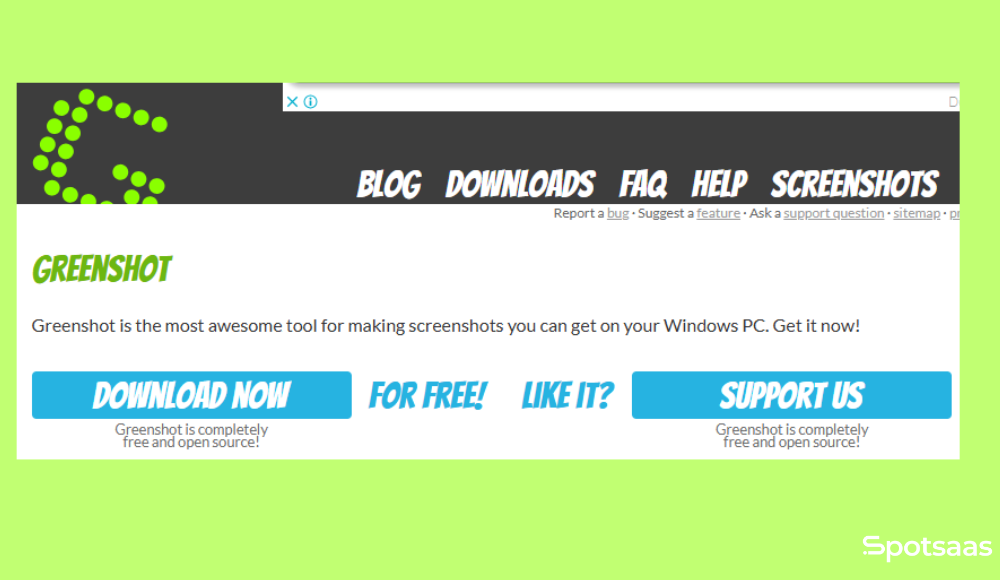
Greenshot is a lightweight, free, and open-source screenshot capturing tool with essential editing and annotation functionalities. It’s a practical, no-cost solution for basic visual capturing and quick annotations.
Its simplicity allows users to capture screenshots easily without compromising on quality or basic annotation needs. Greenshot is particularly beneficial for users seeking straightforward functionality without additional complexities.
Best For
Users seeking a simple, effective, and free screenshot tool without complex functionality.
Key Features
- Simple screenshot capturing
- Basic annotations (highlighting, cropping, text, shapes)
- Multiple export options including clipboard, file-saving, and cloud sharing
- Open-source and community-supported
Why Choose Greenshot
Greenshot is perfect for those needing essential screenshot capabilities without any additional complexities or costs. Its simplicity and reliability make it suitable for daily, straightforward visual tasks.
Quick Comparison Table For Gyazo vs Alternatives
Here’s a side-by-side summary of Gyazo and its alternatives, covering pricing, ideal use cases, and key features at a glance. This table helps you quickly identify which tool aligns best with your workflow and budget.
Use it as a reference to compare core offerings without going back through the full breakdown above.
| Software | Pricing | Best For | Key Features |
|---|---|---|---|
| Gyazo | Free; Pro: $4.99/month | Quick visual sharing, remote teams, developers, designers | Instant screenshots/GIFs, cloud sharing, basic annotations |
| Lightshot | Free | Quick screenshots, simple edits | Fast capture, instant edits, direct sharing |
| Snagit | $62.99 (one-time) | Advanced visuals & documentation | Powerful edits, detailed annotations, screen recording |
| Loom | Free; $12.50/month | Video communication & remote teams | Screen/webcam recording, unlimited videos, collaboration |
| Greenshot | Free | Simple, effective screenshots | Easy captures, basic annotations, multiple export formats |
Potential Drawbacks or Challenges
While Gyazo is built for speed and simplicity, some users may find it limited in areas that are essential for long-term productivity.
These limitations don’t affect every use case but are worth noting, especially for professionals managing large volumes of visual content or those needing more advanced editing tools. Here’s a closer look at potential challenges before fully committing to the platform.
Limited editing capabilities
Gyazo offers only basic annotation tools like arrows, highlights, and text. It doesn’t support multi-layer editing, shape tools, blur effects, or advanced formatting options.
This makes it less ideal for users who want more control over how visuals are presented, such as designers, marketers, or technical writers. In comparison, tools like Snagit offer deeper customization that may suit more complex tasks.
GIF and video duration capped on free plan
The free version restricts GIF and video recordings to a short duration (around 7 seconds), which may not be sufficient for tutorials or product walk-throughs.
This limitation forces users to plan shorter clips or split content into multiple recordings.
Upgrading to the Pro plan removes this restriction and unlocks longer, uninterrupted captures.
Advanced features locked behind paid plans
While Gyazo is functional out of the box, many useful features, like unlimited history access, extended storage, and ad-free usage, are only available in paid versions.
This can affect productivity for users who frequently rely on visual communication.
For growing teams, the lack of these features on the free plan may introduce workflow friction or the need for external tools.
Storage may become restrictive over time
As you continue to capture screenshots, GIFs, and videos, your Gyazo library can fill up fast. Without a Pro or Team subscription, managing large volumes of visuals becomes difficult due to limited storage and fewer organizational tools.
Over time, this may slow down your workflow as you search for older files or resort to external storage solutions.
Latest Trends In Screenshot Tools 2026
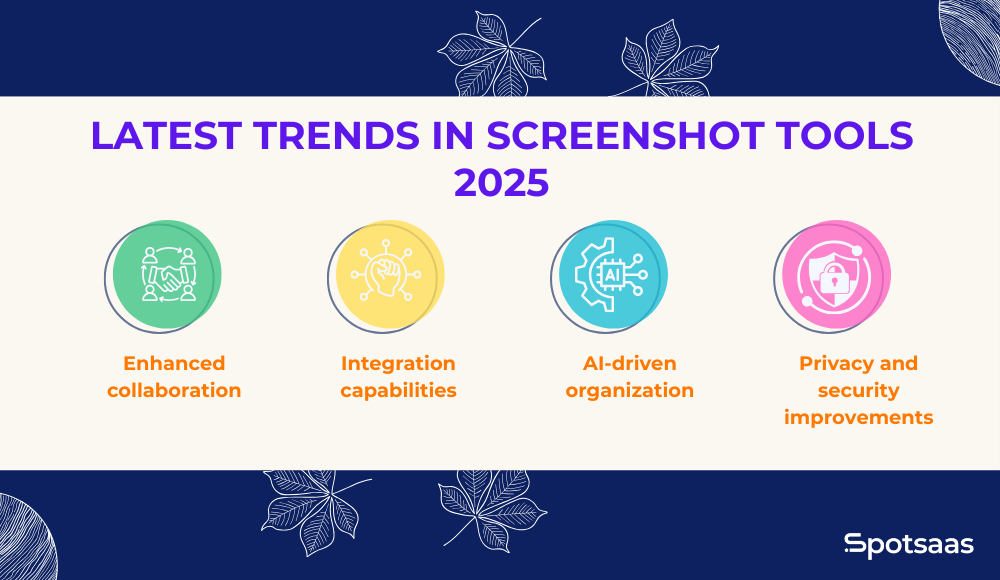
As digital communication grows more visual, screenshot and screen recording tools keep changing with smarter, more collaborative features.
Staying informed on these trends can help users invest in software that meets current needs and scales with emerging demands in remote work, content creation, and privacy standards.
Enhanced collaboration
Modern screenshot tools are moving beyond simple capture-and-share functionality. Many now include real-time commenting, tagging, and team-based workspaces that allow multiple users to interact with visuals.
These features make it easier to give instant feedback, review design elements, and resolve issues faster, especially in remote team environments.
Integration capabilities
Screenshot tools are increasingly connecting with popular productivity and project management platforms such as Slack, Trello, Notion, and Asana.
These integrations reduce context switching. This helps teams embed visuals directly into their workflows. It also improves traceability and speeds up communication within task management systems.
AI-driven organization
AI is playing a growing role in managing visual content. Features like automatic tagging, smart folders, and image recognition help users find screenshots faster without manual sorting.
These AI enhancements are particularly helpful for power users, support teams, and content creators who manage high volumes of visual assets.
Privacy and security improvements
With more visuals being shared across teams and platforms, privacy and data protection have become essential. Screenshot tools are now prioritizing secure sharing options, end-to-end encryption, access controls, and custom permissions.
These features give users greater control over who sees what, and help businesses stay compliant with data security practices.
Being aware of these developments ensures you select a tool that remains relevant as workflows grow more collaborative, integrated, and security-focused.
Conclusion
Gyazo is a reliable, easy-to-use tool for quick screenshot capture, GIF creation, and cloud-based sharing. It’s ideal for developers, designers, educators, and remote teams looking to improve visual communication without a steep learning curve.
While the free version covers basic needs, upgrading unlocks valuable features for advanced users. If simplicity, speed, and team collaboration matter most, Gyazo remains a strong choice in 2026.
Frequently Asked Questions
Is Gyazo free to use?
Yes, Gyazo offers a free version that includes basic screenshot and GIF capture features. However, for unlimited captures, longer videos, and more storage, you’ll need to upgrade to the Pro or Team plan.
Does Gyazo support screen recording with audio?
Gyazo supports video capture, but audio recording is limited. If you’re looking to record tutorials or walkthroughs with voice, you may want to explore other tools like Loom or Snagit.
Can I use Gyazo on mobile devices?
Yes, Gyazo is available on Windows, macOS, and select mobile platforms. This makes it accessible for cross-device collaboration and remote teams.
Is there a way to organize and search my past captures?
Yes. Gyazo Pro users can use tagging and organized history to easily manage and search previous screenshots and recordings.
How secure is Gyazo for sharing sensitive visuals?
Gyazo uses secure cloud storage and provides private sharing options. For extra control, the Teams/Enterprise plans offer administrative permissions and enhanced security features.
