
Getting your video content to look the way you want can be hard when there are so many editing tools to choose from. PowerDirector by CyberLink is one option that combines AI features with controls that are easy to learn, so you spend less time fighting the software and more time editing.
This article collects practical tips and tricks for both new filmmakers and experienced editors, walking you through the steps that take raw footage and turn it into a finished video.
Read on for a clear, hands-on look at how to get more out of the software.
Key Takeaways
- Unlock PowerDirector’s AI-powered editing to speed up your video work, with tools like voice transformation and automatic color enhancement that handle repetitive adjustments for you.
- Use screen recording and live streaming in PowerDirector to capture high-quality content, and rely on the privacy settings to decide exactly what appears on screen.
- For beginners, the core habits are learning the interface, practicing basic cutting and trimming, pulling royalty-free music from the built-in library, and using the audio tools to keep sound levels even.
- Advanced users can reach for professional-grade tools such as detailed visual effects for storytelling, precise image adjustments, voice modulation to vary a narrative, and AI background removal for cleaner composites.
- Combined with the rest of PowerDirector’s toolset—from screen recording to multimedia blending—these techniques let both beginners and pros produce studio-quality videos without a large team.
Understanding Cyberlink PowerDirector: A Comprehensive Video Editing Tool
Knowing what PowerDirector can do is the first step toward stronger video editing. It brings together AI-powered editing, screen recording, and live streaming in one place, so you can handle most of a project without switching between separate apps.
AI-Powered Editing
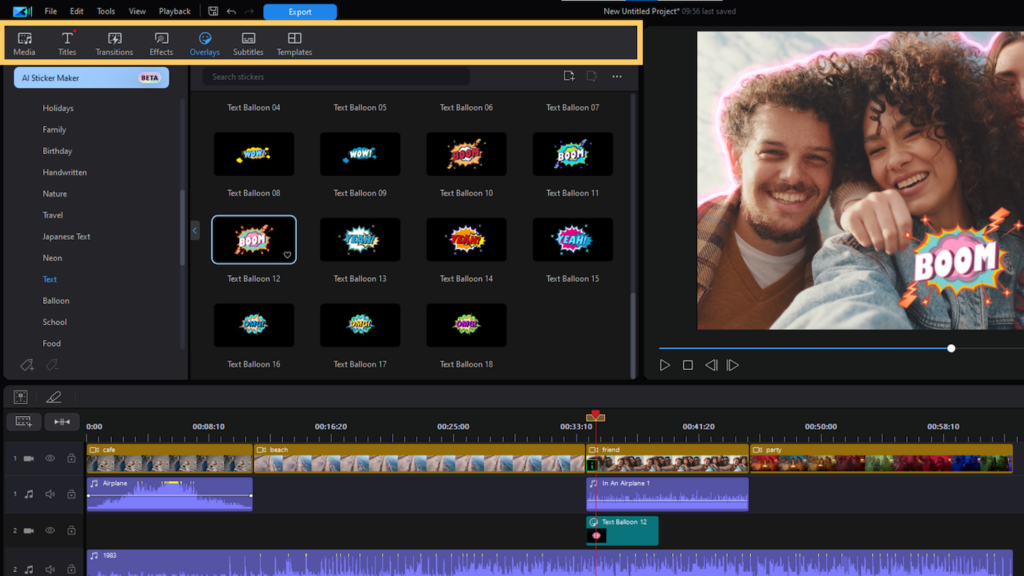
PowerDirector’s AI tools do more than shave time off a project; they change how you approach it. You can correct colors, clean up audio, and apply special effects with just a few clicks instead of adjusting every setting by hand.
The software responds to your input and turns slow, repetitive tasks into quick ones, so you can move through an edit at a steadier pace.
Voice transformation technology in PowerDirector gives you both creative range and a layer of privacy. You can pick from over 100 human-like or whimsical voices to match your characters, or mask your own voice during a live stream.
Letting artificial intelligence handle the routine parts of your projects frees you to concentrate on the shots and story you actually care about.
Screen Recording and Live Streaming
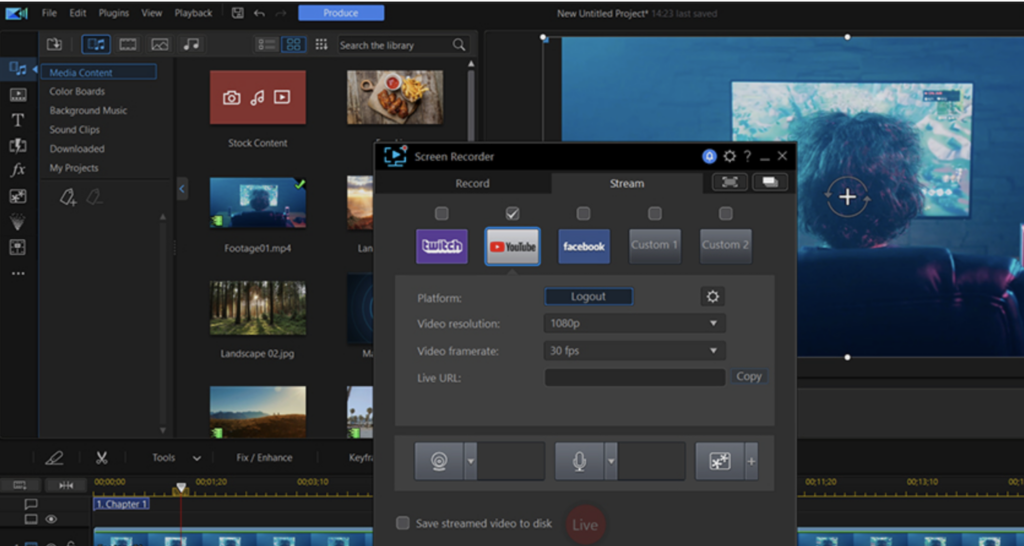
PowerDirector includes solid screen recording and live streaming features that let you capture what happens on your display. That makes it a practical choice for building a video tutorial or broadcasting gameplay without a second piece of software.
You can record the full screen or just a selected area, and add voiceovers using a mix of real human and effect voices so the audio matches the quality of the footage.
Live streaming lets you reach your audience directly, with high-quality broadcasting built into PowerDirector’s interface. Auto-tracking follows moving subjects for you, and you can add text, graphics, or blur sensitive details while the stream is running.
That kind of control turns a plain presentation into something viewers stay with. Because the privacy settings sit right alongside the streaming tools, you can share what you intend to and keep the rest off screen.
Essential Tips and Tricks for Beginners
Starting out in video editing can feel like a lot, but PowerDirector keeps the first steps manageable. The tips below give you a foundation for producing clean, watchable video content.
- Start with the AI-powered editing features, which help you cut scenes or improve footage quickly with little manual work.
- Learn the interface and rearrange your workspace so the tools you use most stay within reach.
- Practice basic cutting and trimming to keep your story flowing; a smooth cut is one of the simplest ways to hold a viewer’s attention.
- Use the screen recording and live streaming functions to capture high-quality content straight from the software.
- Try the photo editing options to bring still images and graphics into your projects and raise the overall production value.
- Work with the audio editing tools to balance levels, cut background noise, or drop in royalty-free music from PowerDirector’s library.
- Build up your color grading skills to give footage a consistent, professional look that holds up next to industry work.
- Make use of the multimedia editing suite, which lets you combine different media types in a single timeline.
- Cut costs on advanced features by choosing the discounted bundle if you expect to use more than one CyberLink product.
- Tap into premium visual content such as stock footage from Getty Images and the Meta Sound Collection to add strong visuals without shooting them yourself.
- Learn to place transitions with intent; they should support the story rather than pull focus from it.
Also read 7 Best Google Chrome Extensions For Capturing Screenshots
Advanced Techniques for Professional Users
Professional editors can push PowerDirector further with the tools built for detailed work. The skills and features below speak to the kind of precision that professional video editors expect:
- Adding detailed visual effects to support the story and keep viewers watching.
- Using voice modulation to give a narration more depth and character.
- Applying image editing tools for fine adjustments that keep visuals sharp.
- Turning to AI background removal to place subjects into new backgrounds cleanly.
- Running screen recording and live streaming to build full tutorials or product demonstrations.
Conclusion
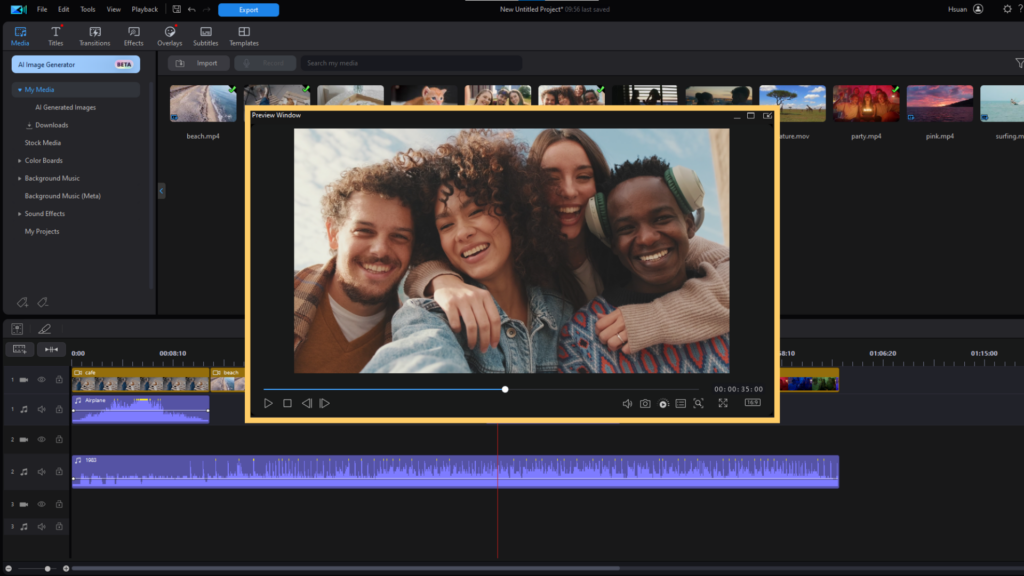
Learning video editing in PowerDirector gives users the means to edit like a professional. Its AI-powered capabilities speed up the work and add quick edits and strong visual effects that lift the finished video.
CyberLink’s product range covers different platforms and pairs studio-quality editing with controls anyone can pick up. Working through these tips gives beginners and professionals alike a clearer path through video production.
(Image Credit: Cyberlink)
Frequently Asked Questions
What are some essential tips for beginners in video editing using PowerDirector?
Beginners should start by familiarizing themselves with the software interface, understanding file management, utilizing basic editing tools, and exploring available tutorials.
Can I use PowerDirector for professional-level video editing?
Yes, PowerDirector offers advanced features suitable for professional video editing such as multi-cam editing, motion tracking, customizable design tools, and 360˚ video editing capabilities.
How can I enhance the visual quality of my videos with PowerDirector?
To improve visual quality in videos using PowerDirector, utilize color grading tools, adjust brightness and contrast settings, apply filters or effects appropriately to enhance the overall look of your content.
Are there any specific tricks to speeding up the video edit process in PowerDirector?
Efficiently speed up your video edits by organizing media files beforehand, utilizing keyboard shortcuts for quick navigation through the software’s functions and familiarizing yourself with hotkeys for commonly used actions.
Can PowerDirector help me explore creative transitions and effects for my videos?
PowerDirector provides a wide array of transition styles and special effects that allow you to experiment with creative transitions between scenes or add visually engaging effects within your videos to make them stand out.
